Sales Integration – Integration Guide
Sales Integration – Integration Guide
Objective
You gather here all the technical information required to integrate your sales data with the KSI platform.
Completing this guide will allow you to implement a reliable, automated integration aligned with your store’s operational needs.
Scalability Recommendations
- Use consistent naming criteria for the external reference codes of stores.
- Maintain identical naming conventions between your internal systems and KSI.
- Centralize the integration process under a single internal technical owner.
- Save this guide as a template for future integrations or expansions.
General Integration Information
Complete this section with all required data from your sales API.
👉 Before starting, make sure you have:
- An endpoint accessible by KSI.
- A valid Bearer token.
- The external reference codes (
ext_ref_codes) for each store.
Explanation of Required Data (Unified Table)
| Section / Field | What you need to enter | Example / Note |
|---|---|---|
| Endpoint URL | URL address from which KSI will consume sales data. | Example: https://api.yourserver.com/sales |
| Authentication | Authentication method required by your API. | Bearer Token |
| Parameter: fromTime | Start date/time in ISO 8601 format. | 2023-02-08T00:00:00-03:00 |
| Parameter: toTime | End date/time in ISO 8601 format. | 2023-02-09T23:59:59-03:00 |
| Parameter: ext_ref_codes | External codes that link each store to its configuration in KSI. | Multiple codes allowed: ext_ref_codes=0001&ext_ref_codes=0002 |
| JSON response format | The API must return a list with ticket totals grouped by hour. | See example below. Only the list should be returned — no extra metadata. |
| Required fields in response | time (ISO 8601), ext_ref_code (store), num_tickets (tickets per hour). | Example: time: "2023-02-08T09:00:00-03:00", num_tickets: 25 |
| Data grouping | Tickets must be grouped by hour. | Example: 10:00–10:59 all in a single record. |
| GET request example | Example of the request KSI will execute to retrieve data. | GET http://<url>?fromTime=...&toTime=...&ext_ref_codes=0001&ext_ref_codes=0002 |
| JSON response example | Expected standard-format response. | See example below. |
| Technical support | Contact for questions or assistance. | ksi.soporte@ksivision.com |
HTTP Request Example
GET http://<customer-url>?fromTime=2023-02-08T09:00:00-03:00&toTime=2023-02-08T10:59:59-03:00&ext_ref_codes=0001&ext_ref_codes=0002
Example Response
[
  {
    "time": "2023-02-08T09:00:00-03:00",
    "ext_ref_code": "0001",
    "num_tickets": 25
  },
  {
    "time": "2023-02-08T10:00:00-03:00",
    "ext_ref_code": "0001",
    "num_tickets": 30
  },
  {
    "time": "2023-02-08T09:00:00-03:00",
    "ext_ref_code": "0002",
    "num_tickets": 150
  },
  {
    "time": "2023-02-08T10:00:00-03:00",
    "ext_ref_code": "0002",
    "num_tickets": 230
  }
]
Configuring the Integration in KSI
Follow these steps to activate and manage the sales integration within the KSI platform.
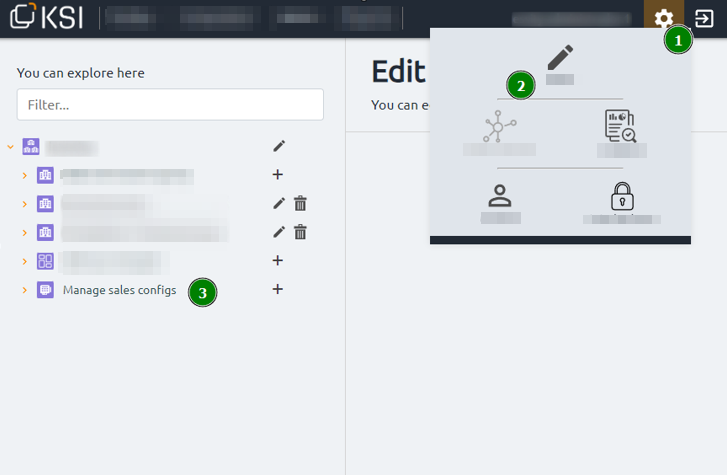
1. Access the Sales Configuration Panel
Navigate to the settings area of your KSI environment:
Settings (1) → Edit (2) → “Manage sales configs” (3)
This section allows you to create, edit, and manage all sales connectors linked to your stores.
2. Create a New Sales Connector
Select Create new connector and complete all required fields:
- Endpoint URL – Your API endpoint used for retrieving sales data
- Authentication – Your Bearer Token
- Request parameters –
fromTime,toTime,ext_ref_codes - Response format – Must match the JSON schema described in this guide
Once finished:
👉 Click Test connection to validate the API.
If the test is successful, click Save to store the connector.
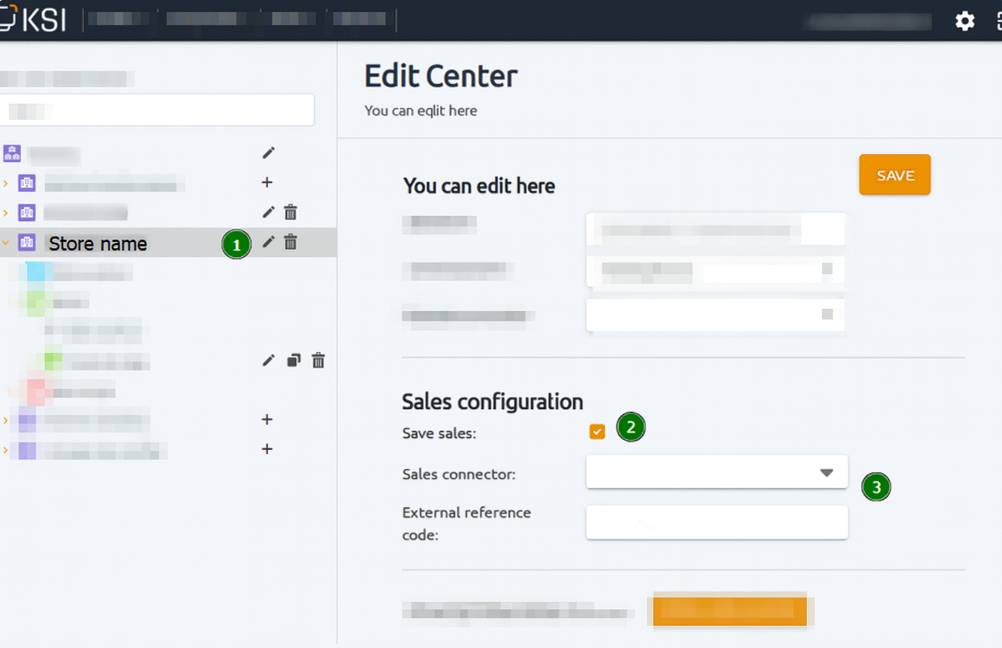
3. Link the Sales Connector to a Store
Go to:
Store configuration (1) → “Sales configuration” section (2)
Here you will assign:
- The sales connector you created (3)
- The store’s external reference code (ext_ref_code) — required to match your sales data with the corresponding store in KSI
4. Save and Activate the Integration
After selecting the connector and entering the correct reference code:
👉 Click Save changes.
From this point forward, KSI will automatically:
- Query your API at regular intervals
- Retrieve grouped hourly sales data
- Match each record with the correct store using the external reference code
- Display ticket volume and trends in your dashboards
No further manual intervention is required unless the connector configuration changes.
Contact & Support
If you need assistance during configuration or troubleshooting:
Our technical support team is available to help ensure your integration runs smoothly.